There is nothing more frustrating than sitting down to finish a critical project, only to have your laptop fans kick into a frantic, high-pitched whir. If you have noticed that your device turns into a portable space heater the moment you plug in your charging cable, you aren’t alone. Many users face this issue, and while it is often a sign of poor airflow or dust buildup, it can also indicate deeper battery issues or software inefficiencies.
When your laptop is charging, the internal components work harder, and the battery itself generates chemical heat. If your cooling system is compromised, this heat has nowhere to go, leading to thermal throttling—which slows down your computer—and potentially long-term hardware damage. In this guide, we will walk you through the diagnostic process to identify why your machine is running hot and provide actionable steps to keep your hardware cool, efficient, and running at peak performance. Whether you need a simple cleaning or a hardware upgrade, we have you covered.
Understanding the Root Causes of Laptop Overheating
Before we dive into the solutions, we need to understand the "why." Heat is a byproduct of energy consumption. When charging, your laptop is simultaneously powering the motherboard and replenishing the chemical potential in the battery.
Common Culprits
- Dust Buildup: The number one cause of overheating. Dust acts as an insulator, trapping heat inside the chassis and blocking fan blades.
- Blocked Air Vents: Using your laptop on a bed, blanket, or carpet restricts airflow, effectively "suffocating" the machine.
- High Background Processes: Charging often triggers "High Performance" mode in Windows or macOS settings, causing your CPU to work harder.
- Aging Thermal Paste: The thermal compound between your CPU/GPU and the heatsink dries out over time, losing its heat-transfer efficiency.
- Faulty Battery or Charger: A failing battery or an incompatible third-party charger can draw improper voltage, creating excess heat during the power conversion process.
Step-by-Step Diagnosis and Solutions
Follow these steps to pinpoint the problem and implement a fix.
Step 1: Check Your Ventilation and Surface
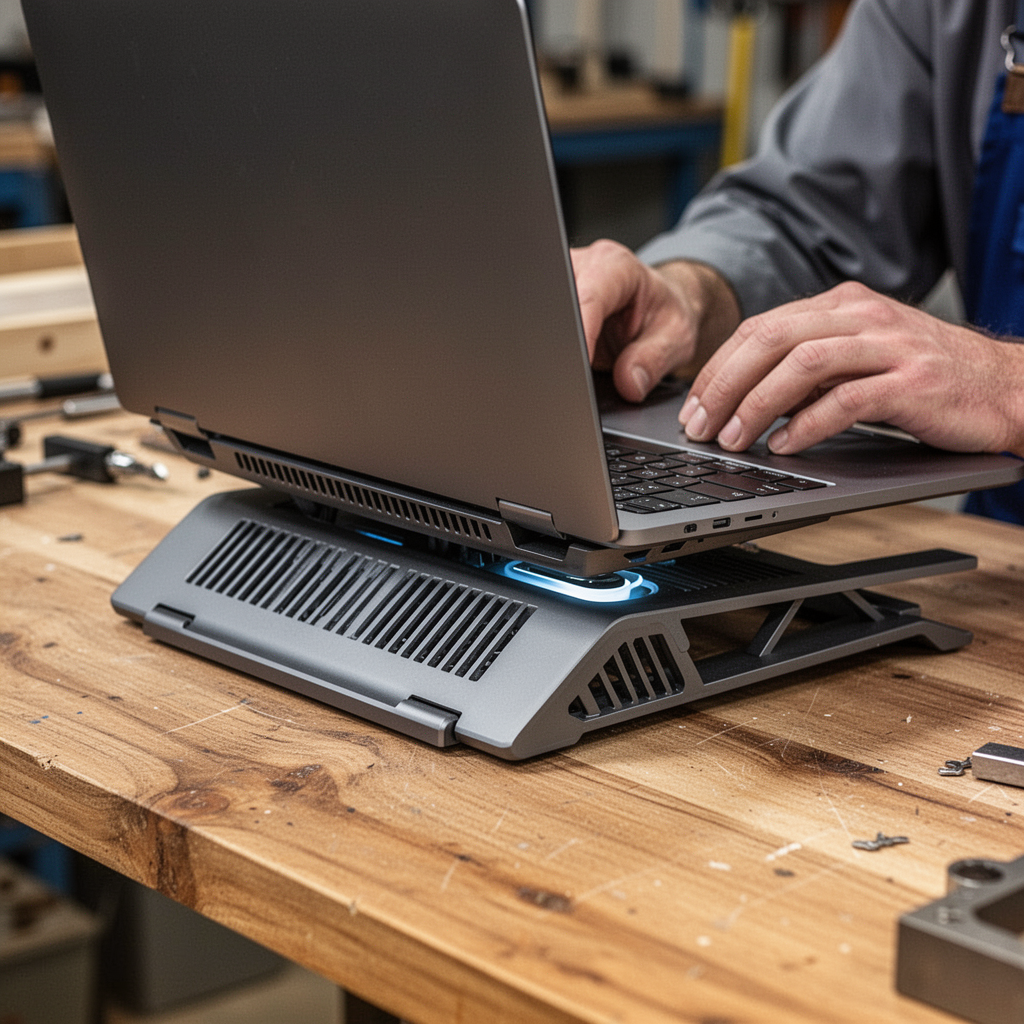
The easiest fix is often the most overlooked. Ensure your laptop is on a flat, hard surface.
- Action: Move your laptop to a desk. If you must use it on your lap, use a dedicated lap desk.
Step 2: Clean the Vents and Fans
If your laptop sounds like a jet engine, it is likely choked with dust.
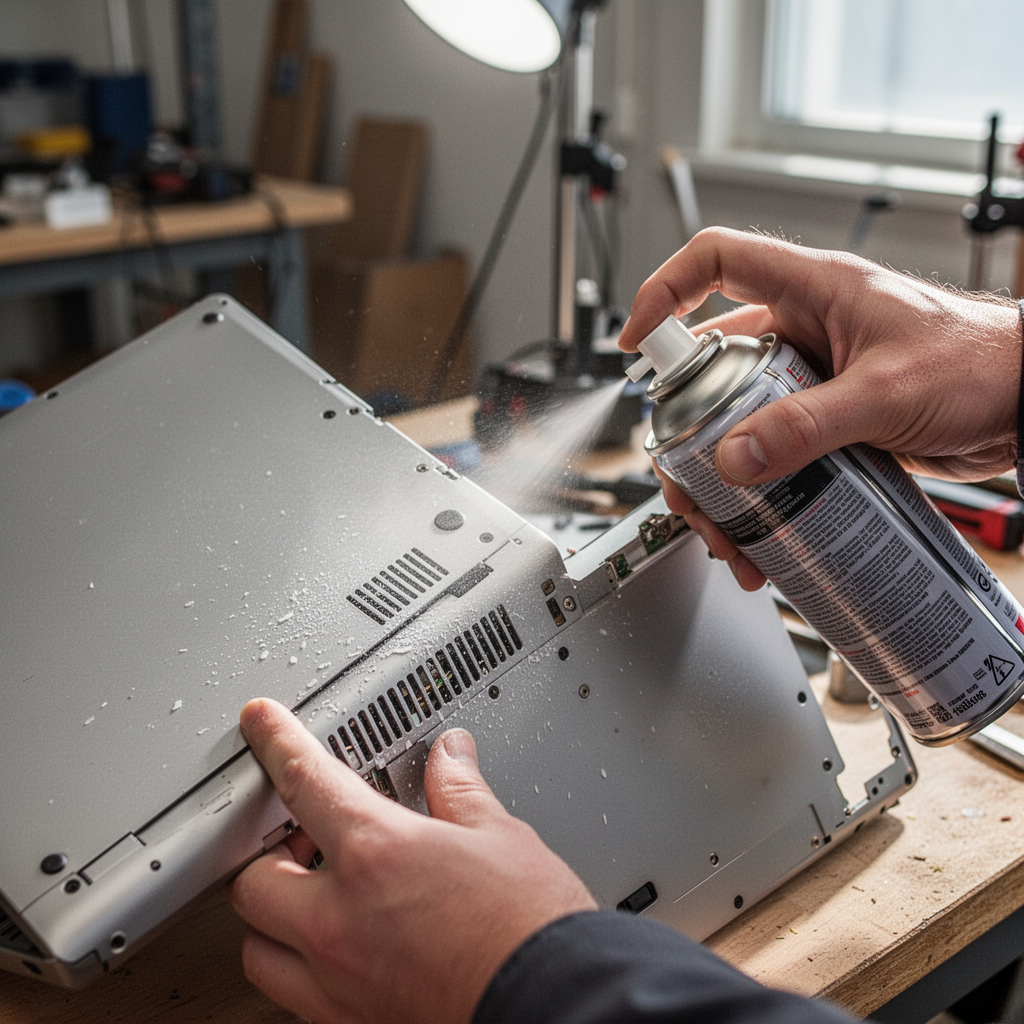
- Tool Required: A can of compressed air.
- Action: Power down the laptop. Use short, controlled bursts of compressed air to blow out the intake and exhaust vents. Do not blow air directly into the fan blades at a sharp angle to avoid over-spinning them.
Step 3: Monitor Background Processes
Sometimes, the issue isn't hardware; it's software.
- Tool Required: Task Manager (Windows) or Activity Monitor (macOS).
- Action: Check for "CPU Hogs." If a browser tab or background process is consuming 40%+ of your CPU while charging, end the task to see if the temperature drops.
Step 4: Adjust Power Management Settings
Your laptop’s power plan might be forcing the processor to run at maximum speed unnecessarily.
- Action: Navigate to Control Panel > Power Options (Windows) and select "Balanced" rather than "High Performance" when plugged in.
Buying Guide: Tools to Manage Temperature
If basic maintenance isn't enough, you may need external hardware to aid your laptop’s cooling system.
What to Look For
- Fan Speed Control: Look for cooling pads that allow you to adjust the RPM of the fans.
- Material: Aluminum surfaces conduct heat better than plastic ones.
- Ergonomics: A stand that elevates the screen reduces neck strain while improving airflow.
Best Options by Budget
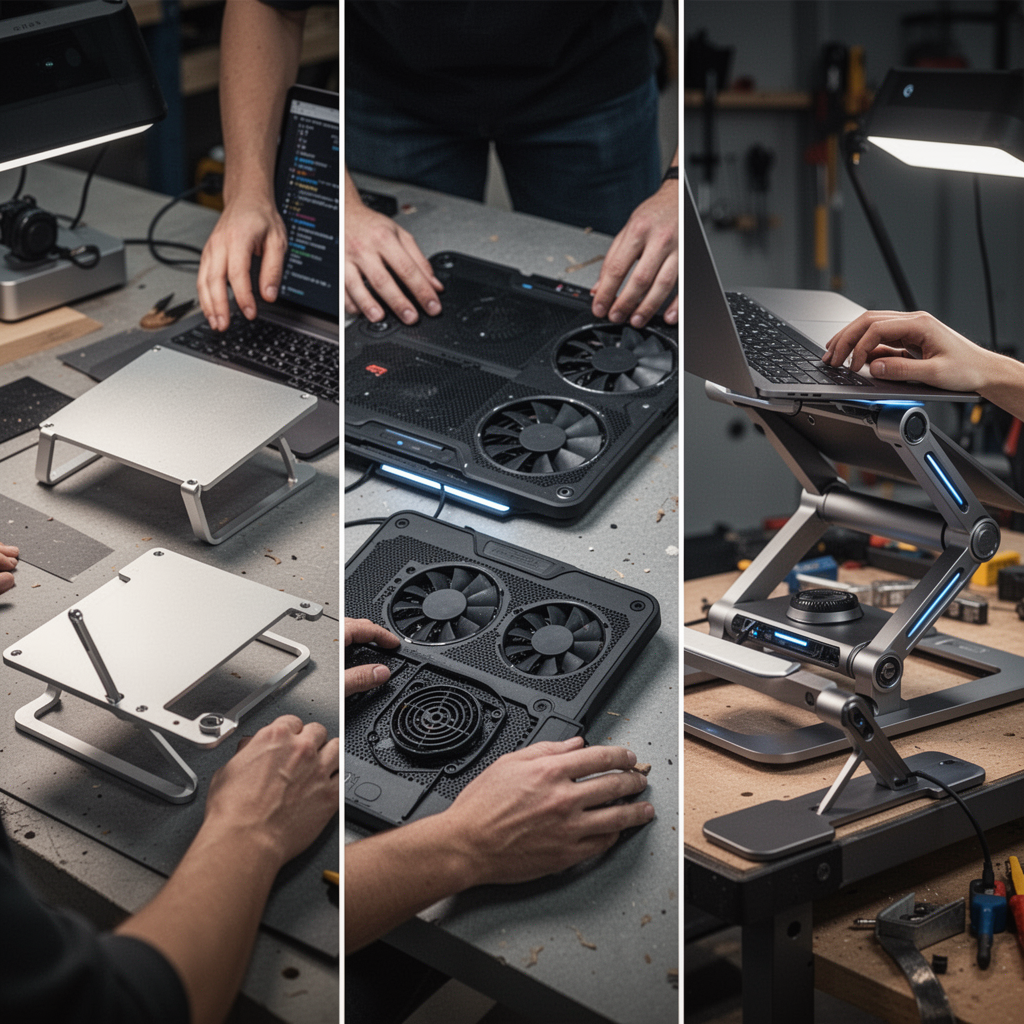
- Budget Choice: Simple folding aluminum stand (passive cooling).
- Mid-Range: Standard 2-fan cooling pad with USB pass-through.
- Premium: High-RPM, multi-fan cooling pad with integrated USB-C hub.
Beginner Tips and Common Mistakes
Common Mistakes to Avoid
- Using Vacuums: Never use a household vacuum near your laptop vents; they create static electricity that can fry your motherboard.
- Neglecting BIOS Updates: Manufacturers often release BIOS updates specifically to improve fan curves and power management.
- Ignoring Warning Signs: If your laptop frequently shuts down randomly, that is a thermal safety trigger. Back up your data immediately.
Essential Tips
- Update Drivers: Always keep your chipset and graphics drivers updated.
- Replace the Battery: If your laptop is more than 3-4 years old and gets hot only while charging, the battery chemistry may be degrading.
- Check Thermal Paste: If you are tech-savvy, reapplying high-quality thermal paste can reduce temperatures by 10-15 degrees Celsius.
Frequently Asked Questions (FAQ)
1. Is it normal for a laptop to get warm while charging? Yes, a mild increase in temperature is normal, but it should never be hot to the touch or cause the fans to run at max speed constantly.
2. Can I use my laptop without a battery if it overheats? Only if your laptop has a removable battery. Do not attempt to open a sealed laptop to remove the battery unless you are a professional.
3. Does high room temperature affect my laptop? Absolutely. If your ambient room temperature is over 80°F (27°C), your laptop will struggle to dissipate heat.
4. How often should I clean my laptop vents? Every 3 to 6 months, depending on how dusty your environment is.
5. Are cooling pads actually effective? Yes, they provide a consistent flow of air, which helps remove the boundary layer of hot air trapped against the laptop's underside.
6. Will using a different charger fix the heating? If the charger is the wrong wattage, it can cause the laptop to draw current inefficiently. Always use the manufacturer-recommended charger.
7. Should I worry if my laptop fans never turn on? Yes. If your laptop is hot and the fans are silent, the fan might be broken or the connection to the motherboard is loose.
8. When should I call a professional? If you have cleaned the vents and the laptop still shuts down due to heat, there is likely a hardware failure that requires a technician.
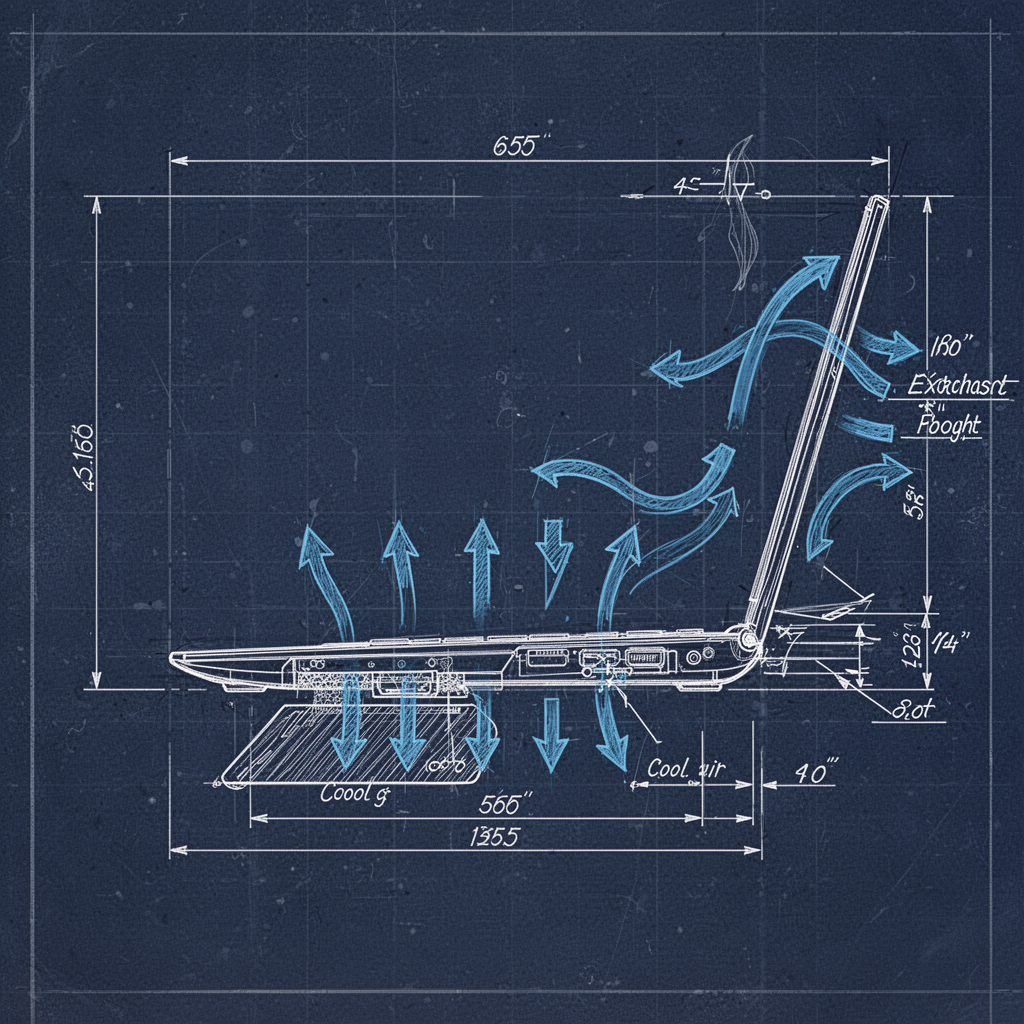
Blueprint for Thermal Management
Safety Tips
Always disconnect your laptop from the power source before performing any physical maintenance or opening the casing. Never force a screw or component, and if you are using compressed air, keep the can upright to prevent propellant liquid from spraying onto your sensitive electronics.
Conclusion
Learning how to fix laptop overheating while charging is an essential skill for any modern user. By keeping your vents clean, using a supportive cooling pad, and managing your software power settings, you can significantly extend the lifespan of your machine. Remember, heat is the silent killer of technology; by taking proactive steps today, you ensure that your laptop remains a reliable tool for years to come. If you find that the temperature remains consistently high despite these efforts, it is wise to consult a local computer repair professional to check for internal hardware degradation. Start by optimizing your airflow today—your laptop (and your productivity) will thank you!