There is nothing quite as heart-stopping as the moment you unplug your laptop, only for it to immediately power down, or worse, see that dreaded red "X" over your battery icon. The "Battery Not Detected" error is a common frustration for laptop users across the USA, often leaving us tethered to a wall outlet like it’s 1995. Whether you are a student pulling an all-nighter or a professional in the middle of a high-stakes presentation, a laptop that refuses to recognize its own power source is a major productivity killer.
Fortunately, this error is often caused by minor software glitches, outdated drivers, or loose internal connections rather than a catastrophic hardware failure. In this comprehensive guide, we will walk you through the diagnostic process to identify why your system has stopped communicating with your battery and provide actionable steps to restore your freedom of movement. Before we dive into the technical repairs, ensure you have the right tools on hand to safely inspect your device.
Understanding the Root Causes
Before jumping into software fixes, it is helpful to understand why this happens. Usually, the issue stems from one of three categories:
- Software/Driver Conflicts: Your operating system (Windows/macOS) relies on specific drivers to communicate with the battery's firmware. If these files are corrupted, the system won't "see" the battery.
- Power Management Settings: Occasionally, the Advanced Configuration and Power Interface (ACPI) settings get confused, leading the system to ignore the hardware.
- Physical Hardware Issues: A loose connector, a degraded battery cell, or a damaged charging port can physically prevent the laptop from establishing a link with the battery.
Step-by-Step Diagnosis and Solutions
1. The Power Cycle Reset (The "Hard Reset")
Often, static electricity or a temporary firmware hiccup is to blame. A hard reset clears the motherboard's temporary memory.
- Step 1: Shut down your laptop completely and unplug the power adapter.
- Step 2: If your laptop has a removable battery, pop it out. If it is internal, skip to the next step.
- Step 3: Press and hold the power button for 30 seconds. This drains any residual charge from the capacitors.
- Step 4: Reinsert the battery (if applicable) and plug in the power cord. Turn the laptop back on.
2. Updating or Reinstalling Battery Drivers
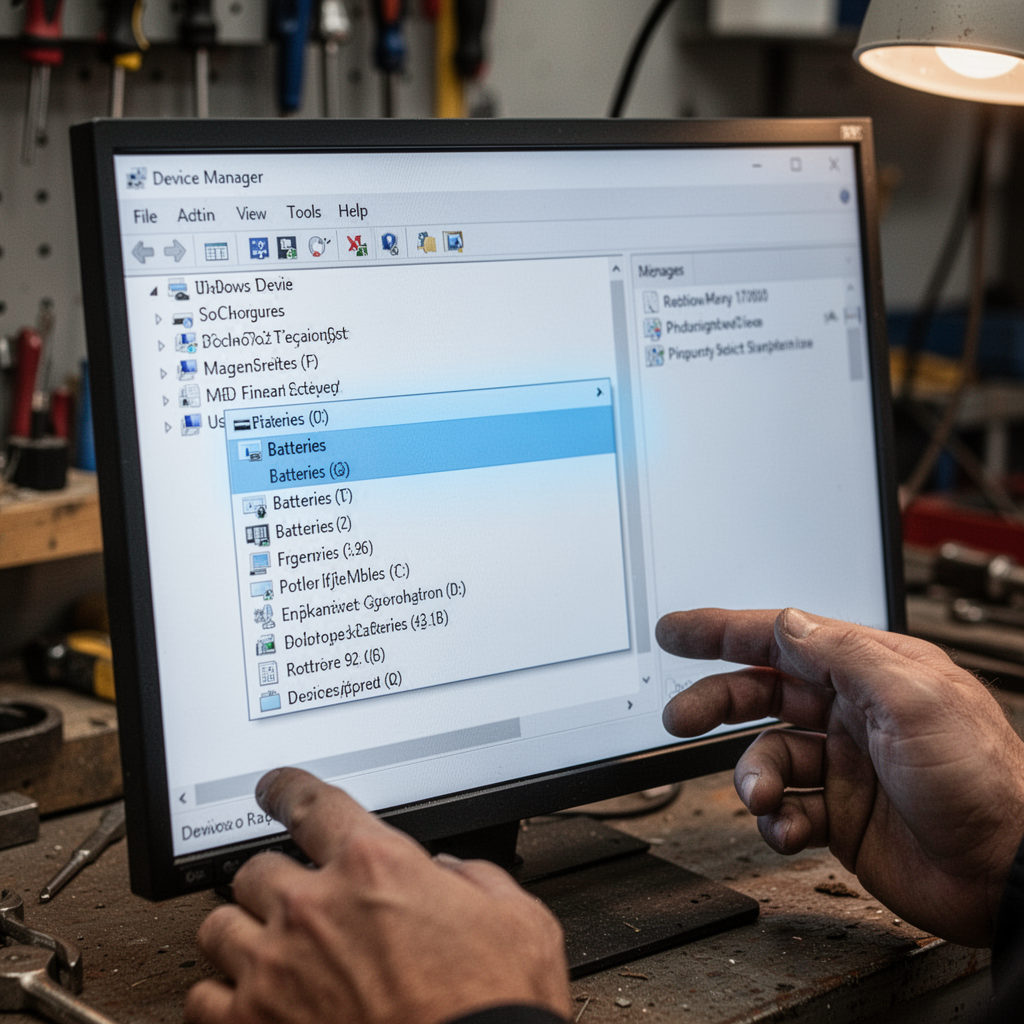
This is the most common fix for Windows users. The "Microsoft ACPI-Compliant Control Method Battery" driver is likely the culprit.
- Step 1: Right-click the Start button and select Device Manager.
- Step 2: Expand the Batteries section.
- Step 3: Right-click "Microsoft ACPI-Compliant Control Method Battery" and select Uninstall device. (Don't worry, it will reinstall automatically).
- Step 4: Restart your computer. Windows will search for the hardware and reinstall the correct driver on startup.
3. Checking for Hardware Damage
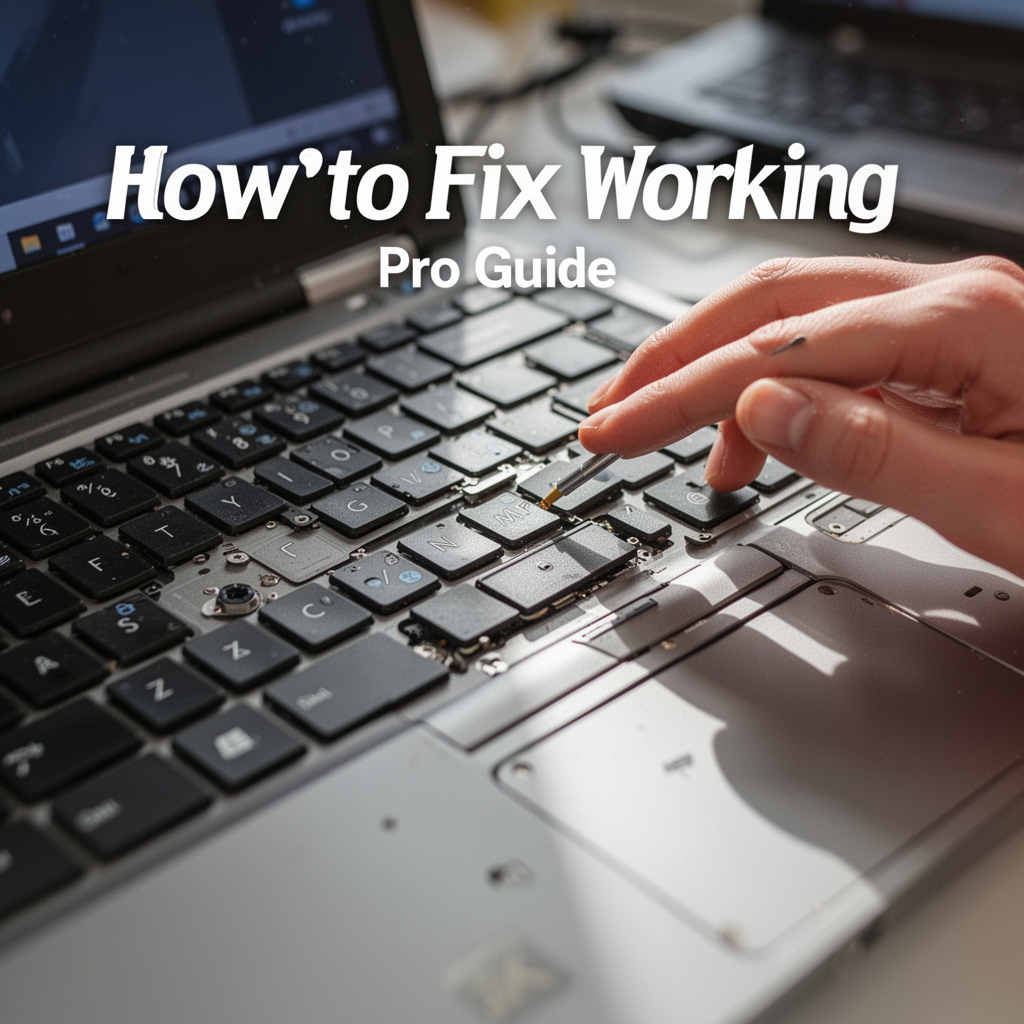
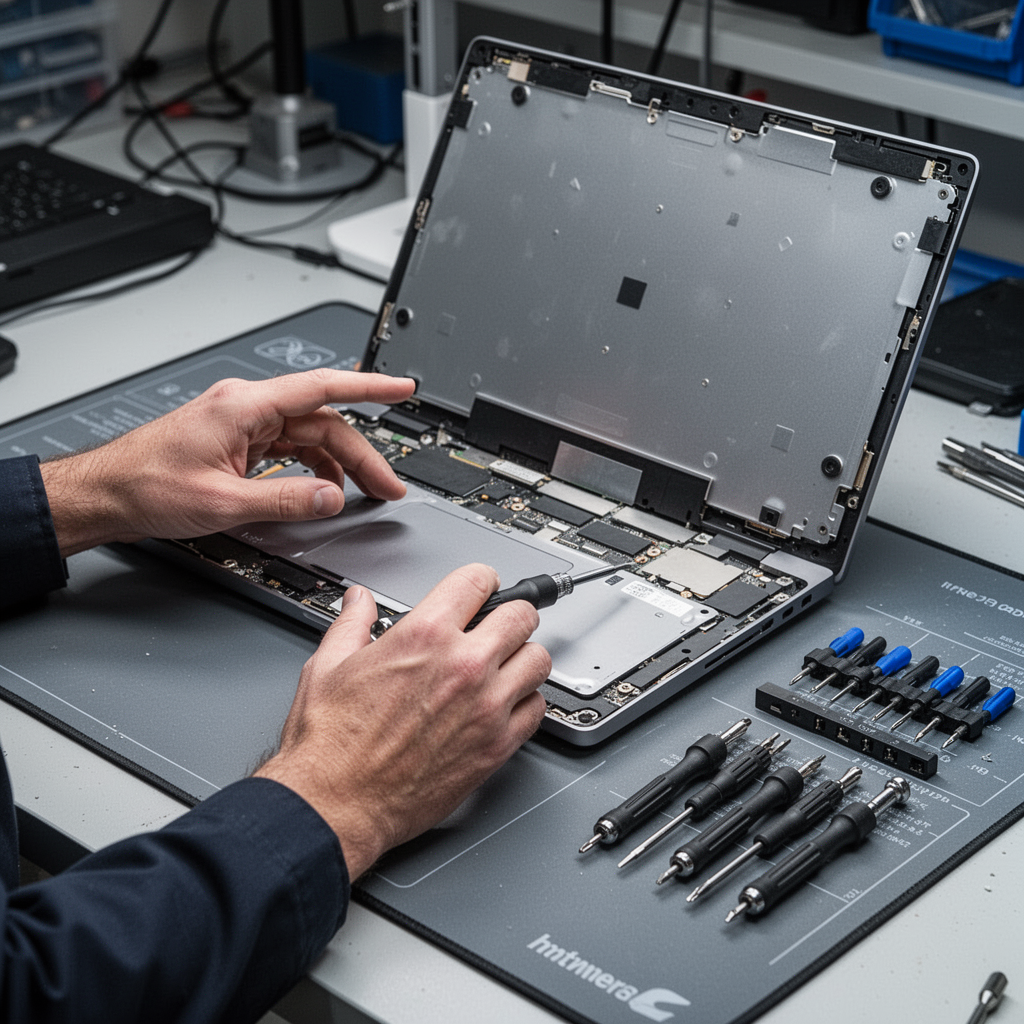
If software fixes fail, you may need to open the chassis. Before doing this, ensure you have a proper precision toolkit.
- Step 1: Power off and unplug.
- Step 2: Use a precision screwdriver to remove the back panel.
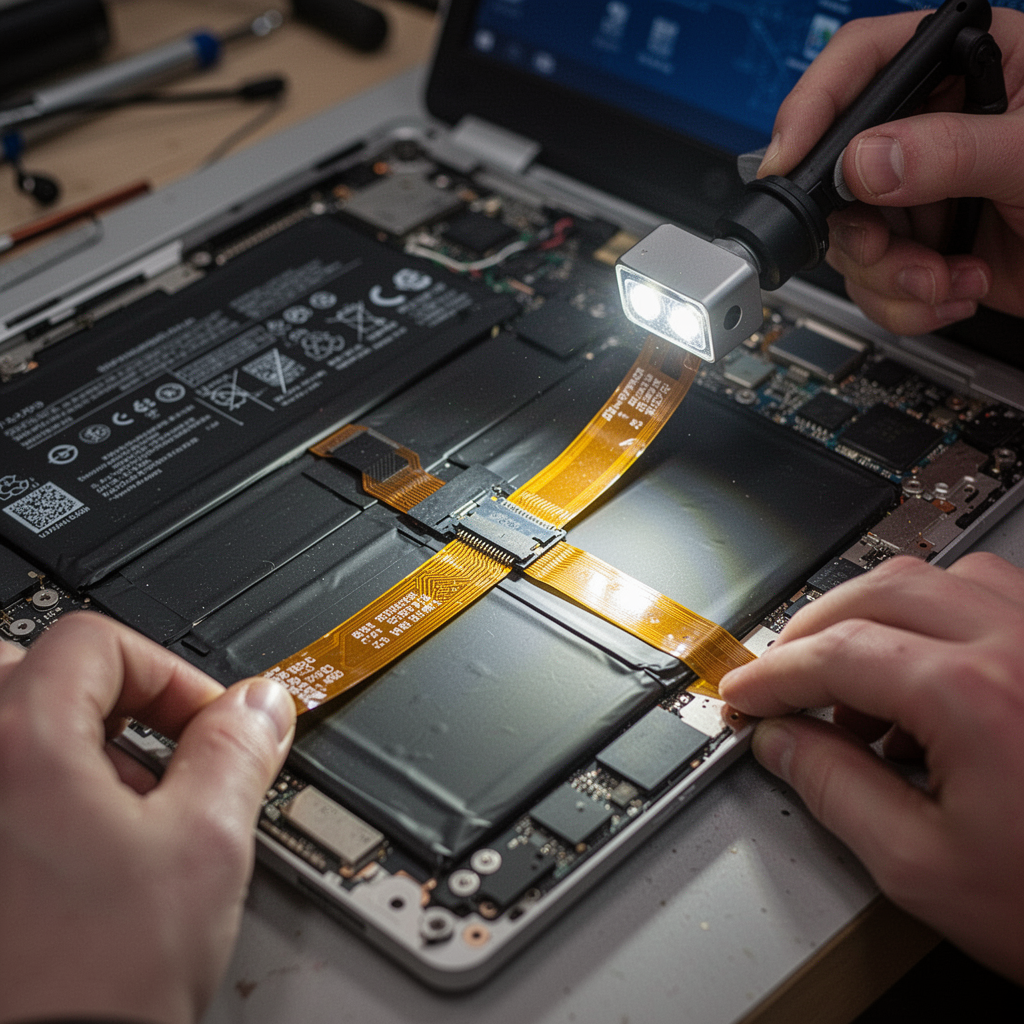
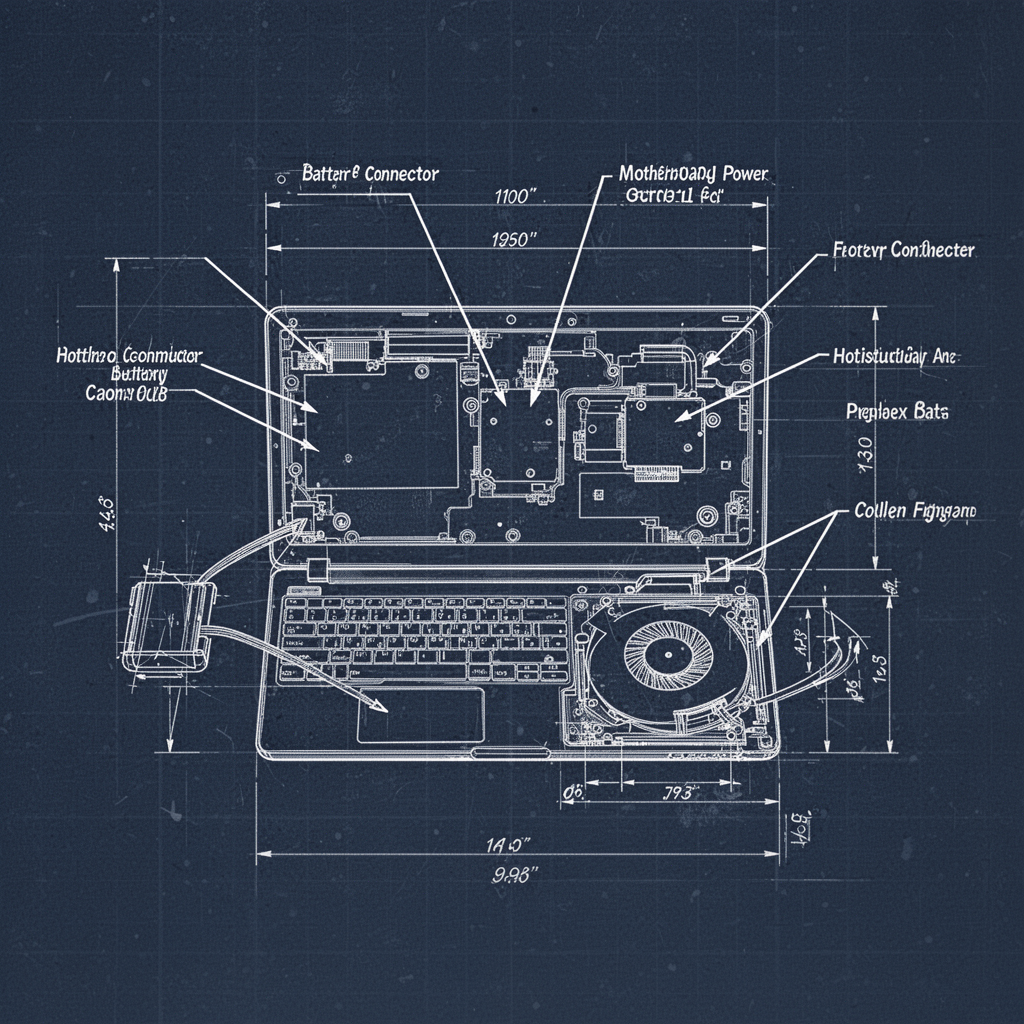
- Step 3: Inspect the battery ribbon cable. Is it disconnected or pinched?
- Step 4: Carefully unplug and re-seat the connector to ensure a snug fit.

Digital Photography Complete Course: Learn Everything You Need to Know in 20 Weeks
When to Call a Professional
If you have performed a hard reset, reinstalled drivers, and inspected the internal connections, but the laptop still refuses to detect the battery, it is time to consult a professional. You should seek expert help if:
- The battery is physically swollen or distorted.
- The motherboard charging pins are bent or burnt.
- You are uncomfortable working with internal components that involve lithium-ion batteries.
Beginner Tips and Common Mistakes
- Avoid "Over-Calibration": Don't constantly drain your battery to 0% as this stresses the chemical cells.
- Avoid Generic Chargers: Always use an original or high-quality certified replacement power adapter. Cheap knock-offs can fry your battery's charge controller.
- Keep Vents Clean: Use compressed air to blow out dust from vents. Heat is the number one killer of laptop battery longevity.
Frequently Asked Questions
1. Is my battery dead if it's not detected? Not necessarily. It usually means the communication link between the OS and the battery is broken.
2. Can I use my laptop without a battery? Yes, most modern laptops will run on AC power alone, but you lose the portability and data protection of a battery backup.

ASUS ROG Strix G16 (2025) Gaming Laptop, 16” FHD+ 16:10 165Hz/3ms Display, NVIDIA® GeForce RTX™ 5060 Laptop GPU, Intel® Core™ i7 Processor 14650HX, 16GB DDR5, 1TB Gen 4 SSD, Wi-Fi 7, Windows 11 Home
3. Will a Windows Update fix this? Sometimes. Drivers are often updated through Windows Update, so ensure your system is fully patched.
4. How long do laptop batteries typically last? Most laptop batteries last between 2 to 4 years before showing significant capacity loss.
5. What is the "Battery Report" command?
Open Command Prompt as admin and type powercfg /batteryreport. It generates a file showing the health and cycle count of your battery.
6. Does the "Not Detected" error mean I need a new battery? It could, but exhaust all software troubleshooting steps first to avoid unnecessary purchases.
7. Can third-party batteries cause this error? Yes, if the battery’s internal chip (BMS) isn't perfectly compatible with your laptop's proprietary handshake protocol.
8. Is it safe to open my laptop? If you are careful and use the right tools, yes. Avoid touching the internal electronic components directly to prevent static discharge.
Blueprint Section
Safety Tips
- Always disconnect power before opening the chassis to avoid electrical shorts.
- Never puncture or bend a lithium-ion battery; they can catch fire if damaged.
- Work in a well-lit area with an anti-static mat to protect sensitive hardware.
- If the battery smells sweet or appears puffy, dispose of it at a certified e-waste recycling center immediately.
Conclusion
Resolving a "Laptop Battery Not Detected" error might seem daunting at first, but by following these systematic troubleshooting steps, you can often save yourself the cost of a professional repair. Start with the software—resetting your ACPI drivers and performing a power cycle—before moving to physical inspection. Most issues are simply a matter of the operating system losing track of its hardware.
Remember, your battery is a consumable component. While these tips will fix detection errors, they cannot reverse physical chemical degradation. If your battery is nearing the end of its lifespan, investing in a high-quality replacement is the smartest path forward to ensure your laptop remains a reliable tool for years to come. Take your time, work carefully, and you’ll be back to cordless productivity in no time. If you found this guide helpful, don't forget to check out our other guides on optimizing your laptop's battery performance!